4.4 KiB
Installing Breezy Gnome desktop on Steam Deck (contributed by Bill Burdick)
These instructions require making your filesystem read-write. Efforts have been made to use distrobox but so far have not succeeded. Please contribute if you have success with that!
Make sure you're running on at least 3.6, which might require switching to the beta or alpha channel
NOTE: gnome-shell --nested didn't work for me on 3.5 but it did when I updated to 3.6.
I was getting errors:
Unrecognized option: -byteswappedclients
(with lots of other text).
Seems related to this bug: https://bugs-devel.debian.org/cgi-bin/bugreport.cgi?bug=1050642 and SteamOS 3.5 has mutter 44.2
If your root is not already writeable, make it so
sudo steamos-readonly disable
If your pacman environment is not already initialized, make it so
sudo pacman-key --init
sudo pacman-key --populate archlinux
sudo pacman-key --populate holo
make sure /usr/share is in your XDG_DATA_DIRS variable
if not, add :/usr/share to it
load depends for breezy
sudo pacman -S --needed base-devel git
# existing packages are reloaded here in order to install their header files
sudo pacman -S glibc linux-api-headers systemd-libs openssl libevdev libusb json-c curl hidapi python python-pydbus 'gnome-shell>=45.0' python-yaml
Install xr-driver-breezy-gnome-git
work=$(mktemp -d)
cd $work
mkdir xr-driver
cd xr-driver
curl 'https://aur.archlinux.org/cgit/aur.git/plain/PKGBUILD?h=xr-driver-breezy-gnome-git' > PKGBUILD
curl 'https://aur.archlinux.org/cgit/aur.git/plain/hooks.install?h=xr-driver-breezy-gnome-git' > hooks.install
makepkg -si
Install breezy-desktop-gnome-git
cd $work
mkdir breezy
cd breezy
curl 'https://aur.archlinux.org/cgit/aur.git/plain/PKGBUILD?h=breezy-desktop-gnome-git' > PKGBUILD
makepkg -si
Continue with wheaney's setup instructions
Thanks to TTachyon on Reddit for some very important info
https://www.reddit.com/r/SteamDeck/comments/t92ozw/for_compiling_c_code
Docks
My Steam Deck dock does not support displayport alt mode on any of its ports (except the one that goes into the deck of course). There are a few docks out there that do, but not many. If you need to use a third party dock with your glasses, make sure it has a port with the displayport alt mode symbol
| like |  |
or |  |
|---|
For reference, I'm using the Inateck 10-in-1 USB-C hub (Amazon link)
More setup stuff
My current breezy script
This starts the breezy desktop in a nested gnome-shell, and waits for you to activate the window (like by
clicking on it). This expects the classify-gnome-shell script to be in your path.
#!/bin/sh
dconf write /com/xronlinux/BreezyDesktop/debug true
dconf write /com/xronlinux/BreezyDesktop/developer-mode true
clssify-gnome-shell&
MUTTER_DEBUG_DUMMY_MODE_SPECS='1920x1080@60' exec dbus-run-session -- gnome-shell --nested
#MUTTER_DEBUG_DUMMY_MODE_SPECS='3840x1080@60' exec dbus-run-session -- gnome-shell --nested
My current classify-gnome-shell script
This script waits for you to make the nested gnome shell active (like by clicking on it) and then puts a "gnome-shell" class onto the window (which has no class for some reason). I have a KDE window rule that needs the window to have the "gnome-shell" class.
#!/bin/sh
while true; do
    id=$(xdotool getactivewindow)
    if xprop -id $id | grep -q "WM_NAME.*gnome-shell"; then
        xdotool getactivewindow set_window --class gnome-shell --classname gnome-shell
        echo -e "\n\nGNOME-SHELL: $id\n\n"
        break
    fi
    sleep 0.25
done
KDE Window rule
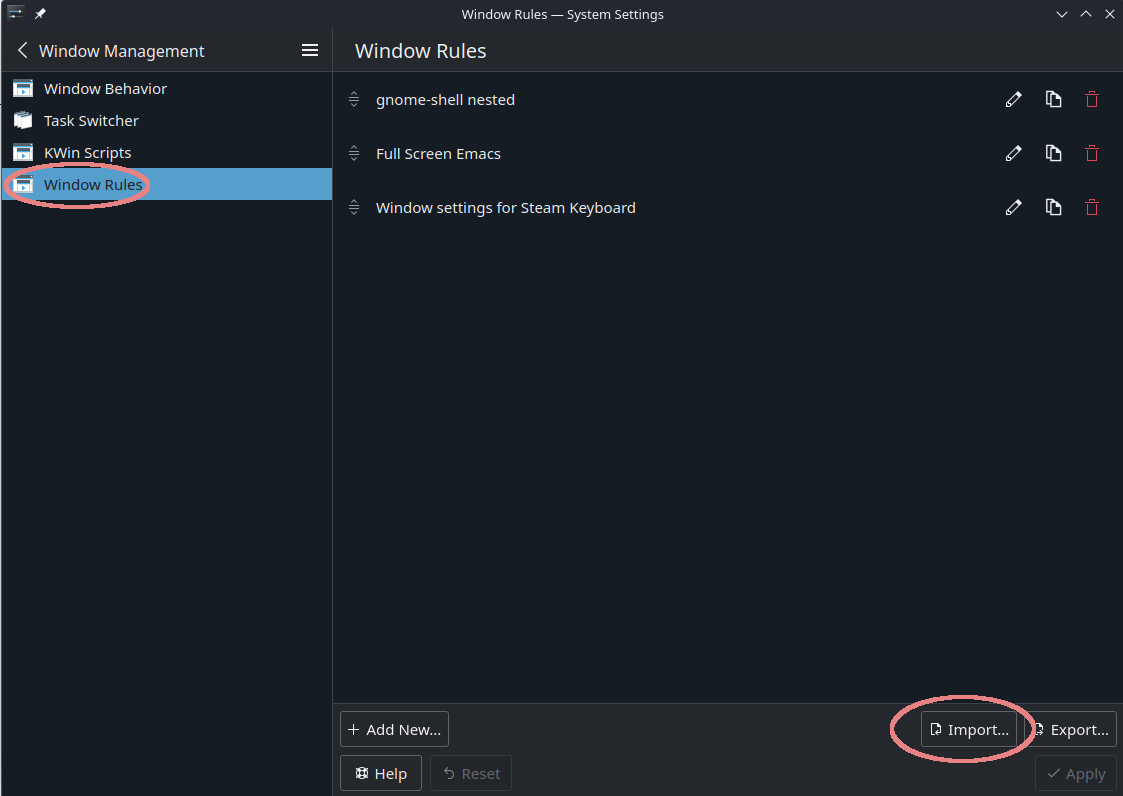
This rule full-screens the window, removes the title bar, and makes it ignore KEY desktop shortcuts (so you can use the super key in your nested gnome session).
[gnome-shell nested]
Description=gnome-shell nested
above=true
disableglobalshortcuts=true
disableglobalshortcutsrule=2
fullscreen=true
fullscreenrule=2
noborder=true
noborderrule=2
skiptaskbar=true
title=Steam Keyboard
type=16
wmclass=gnome-shell gnome-shell
wmclasscomplete=true
wmclassmatch=1
To install the rule
- copy the above text into a file
- go to KDE settings and click on Window Management
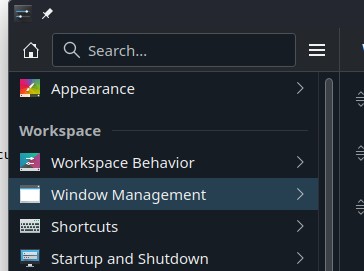
- click on Window Rules and then click the Import button to import the rules