12 KiB
CAI TUI User Interface
⚡ CAI-Pro Exclusive Feature
The Terminal User Interface (TUI) is available exclusively in CAI-Pro. To access this feature and unlock advanced multi-agent workflows, visit Alias Robotics for more information.
This guide provides a detailed overview of the CAI TUI interface components and their functions.
Interface Overview
The CAI TUI interface is divided into several key areas:
Top Bar
The top bar provides global controls and information:
-
[≡] Sidebar toggle: Toggles the visibility of the sidebar containing Teams, Queue, Stats, and Keys tabs. Press
Ctrl+Sor click this icon to show/hide the sidebar and maximize terminal space. -
Terminal: Main CAI interface label indicating the active application view.
-
Add+ button: Creates and adds a new terminal to the current session.
-
Graph: Visual conversation flow representation.
-
Help: Launches the comprehensive user guide with detailed documentation, keyboard shortcuts reference, and pro tips.
-
[×] Close: Exits the TUI application.
Sidebar
The sidebar contains four main tabs accessible via mouse click or keyboard shortcuts:
1. Teams Tab
The Teams tab displays preconfigured agent teams for parallel testing scenarios. CAI TUI includes 11 preconfigured teams designed for different security testing workflows.
Team Buttons:
- Compact labels show team composition (e.g.,
#1: 2 red + 2 bug) - Click to apply team configuration to all 4 terminals simultaneously
- Hover to see detailed tooltip with full agent names and terminal-by-terminal assignments
Tooltip Information: Each team button displays a rich tooltip on hover showing:
- Team number and full composition (e.g., "#1: 2 redteam_agent + 2 bug_bounter_agent")
- Terminal-by-terminal breakdown:
- T1: Agent assigned to Terminal 1
- T2: Agent assigned to Terminal 2
- T3: Agent assigned to Terminal 3
- T4: Agent assigned to Terminal 4
Available Preconfigured Teams
Team #1: 2 Red + 2 Bug Bounty
- T1: redteam_agent
- T2: redteam_agent
- T3: bug_bounter_agent
- T4: bug_bounter_agent
- Best for: Comprehensive vulnerability discovery combining offensive testing with bug bounty methodology
Team #2: 1 Red + 3 Bug Bounty
- T1: redteam_agent
- T2: bug_bounter_agent
- T3: bug_bounter_agent
- T4: bug_bounter_agent
- Best for: Bug bounty programs with red team leadership and multiple hunters focusing on different attack surfaces
Team #3: 2 Red + 2 Blue
- T1: redteam_agent
- T2: redteam_agent
- T3: blueteam_agent
- T4: blueteam_agent
- Best for: Adversarial testing with simultaneous offensive and defensive perspectives
Team #4: 2 Blue + 2 Bug Bounty
- T1: blueteam_agent
- T2: blueteam_agent
- T3: bug_bounter_agent
- T4: bug_bounter_agent
- Best for: Defense-focused assessments with vulnerability validation from bug bounty perspective
Team #5: Red + Blue + Retester + Bug
- T1: redteam_agent
- T2: blueteam_agent
- T3: retester_agent
- T4: bug_bounter_agent
- Best for: Complete security lifecycle from discovery to validation with mixed specialties
Team #6: 2 Red + 2 Retester
- T1: redteam_agent
- T2: redteam_agent
- T3: retester_agent
- T4: retester_agent
- Best for: Aggressive offensive testing with immediate vulnerability retesting and validation
Team #7: 2 Blue + 2 Retester
- T1: blueteam_agent
- T2: blueteam_agent
- T3: retester_agent
- T4: retester_agent
- Best for: Defensive security validation with continuous retesting of hardening measures
Team #8: 4 Red Team
- T1: redteam_agent
- T2: redteam_agent
- T3: redteam_agent
- T4: redteam_agent
- Best for: Maximum offensive power, CTF competitions, intensive penetration testing campaigns
Team #9: 4 Blue Team
- T1: blueteam_agent
- T2: blueteam_agent
- T3: blueteam_agent
- T4: blueteam_agent
- Best for: Comprehensive defensive analysis, security architecture review, hardening validation
Team #10: 4 Bug Bounty
- T1: bug_bounter_agent
- T2: bug_bounter_agent
- T3: bug_bounter_agent
- T4: bug_bounter_agent
- Best for: Bug bounty hunts, vulnerability research, OWASP Top 10 testing across multiple surfaces
Team #11: 4 Retester
- T1: retester_agent
- T2: retester_agent
- T3: retester_agent
- T4: retester_agent
- Best for: Large-scale retesting campaigns, verification of fixes, regression testing
Using Teams
When you select a team:
- All 4 terminals are automatically reconfigured with the designated agents
- Agent dropdowns in each terminal header update to reflect new assignments
- Terminal output areas are preserved (previous conversations remain visible)
- Each terminal is ready to receive prompts immediately
- You can broadcast the same prompt to all terminals or send individual prompts
2. Queue Tab
The Queue tab manages prompt queuing and broadcast execution:
Queue Management:
- View all queued prompts
- Delete individual prompts
- Clear entire queue
- Execute queue sequentially
Broadcast Mode:
- Toggle broadcast mode on/off
- Send prompts to all terminals simultaneously
- Queue prompts for batch execution
- Monitor execution progress
Queue Display:
[1] Scan target.com for XSS vulnerabilities
[2] Check for SQL injection in login form
[3] Test API endpoints for authorization bypass
3. Stats Tab
The Stats tab provides real-time cost tracking and usage statistics:
Cost Information:
- Total session cost (all terminals combined)
- Per-terminal cost breakdown
- Token usage (input/output)
- Model pricing details
- Cost per interaction
Usage Metrics:
- Number of interactions
- Total tokens consumed
- Average cost per turn
- Time elapsed
- Active terminals
Example Display:
Total Cost: $0.47
═══════════════════════
Terminal 1: $0.15
Terminal 2: $0.12
Terminal 3: $0.10
Terminal 4: $0.10
Cost Limits:
- Set via
CAI_PRICE_LIMITenvironment variable - Warning when approaching limit
- Automatic pause when limit exceeded
4. Keys Tab
The Keys tab displays and manages API keys:
Key Information:
- API key provider (OpenAI, Anthropic, etc.)
- Masked API keys
Key Management:
- Update keys without restarting
- Environment variable status
Terminal Components
Each terminal window consists of several components:
Terminal Header
The header bar above each terminal shows:
- Terminal Number: T1, T2, T3, or T4
- Agent Name: Currently selected agent (e.g.,
redteam_agent) - Model Selector: Dropdown to change LLM model (e.g.,
alias1,gpt-4o) - Container Icon: Indicates if agent is running in container mode
Agent Dropdown:
- Click to open agent selection menu
- Shows all available agents
- Hover for agent description
- Keyboard navigation supported
Model Dropdown:
- Click to open model selection menu
- Shows configured models (alias1, gpt-5, gpt-4o, etc.)
- Displays model aliases and actual names
- Updates immediately upon selection
Terminal Output Area
The main terminal display area shows:
Agent Responses:
- Formatted text with Rich markup support
- Syntax-highlighted code blocks
- Tables and structured data
- Progress indicators for long operations
Tool Calls:
- Tool name and parameters
- Execution status (running, success, error)
- Tool output and results
- Collapsed/expanded view for long outputs
System Messages:
- Agent initialization
- Context resets
- Error messages
- Cost warnings
Streaming Display:
- Real-time token streaming for LLM responses
- Progressive rendering of tool outputs
- Live progress indicators
- Smooth scrolling
Terminal States
Terminals can be in different visual states:
Active State:
- Highlighted border (accent color)
- Ready to receive input
- Cursor visible in input area
- Responds to keyboard shortcuts
Inactive State:
- Dimmed border
- Background operations continue
- Click to activate
- Scrollable content
Busy State:
- Spinner or progress indicator
- "Working..." message
- Cannot send new prompts
- Cancel option available (
Ctrl+C)
Error State:
- Red border or error indicator
- Error message displayed
- Retry option available
- Can clear and continue
Terminal Layouts
The TUI supports multiple layout configurations for parallel agent execution:
Single Terminal Layout
Default view showing one terminal at full width:
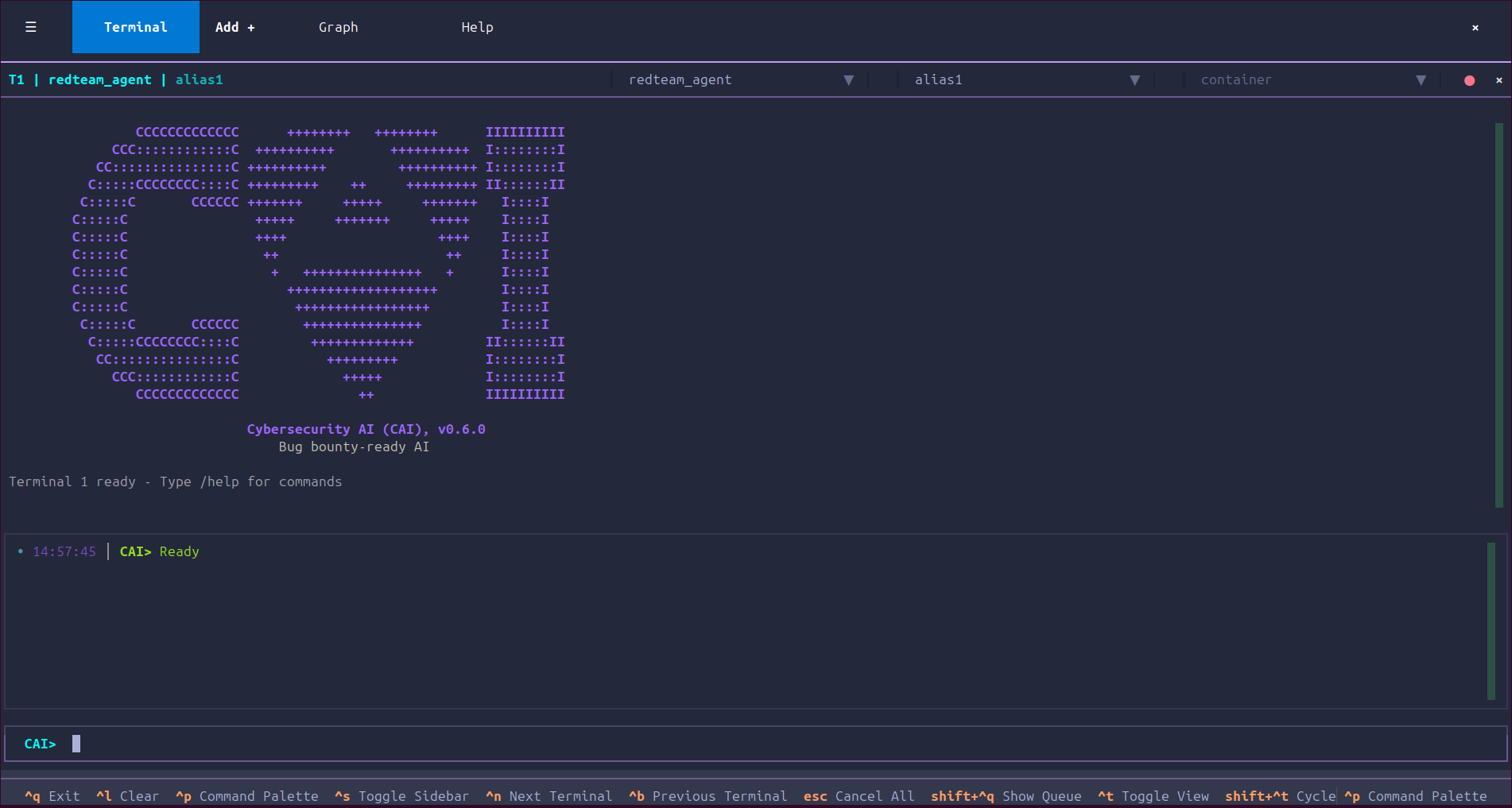
Use Cases:
- Single-agent workflows
- Detailed analysis requiring full screen
- Learning and experimentation
Activation: Automatically displayed when only one terminal is needed
Split (Two Terminal) Layout
Side-by-side view for two terminals:
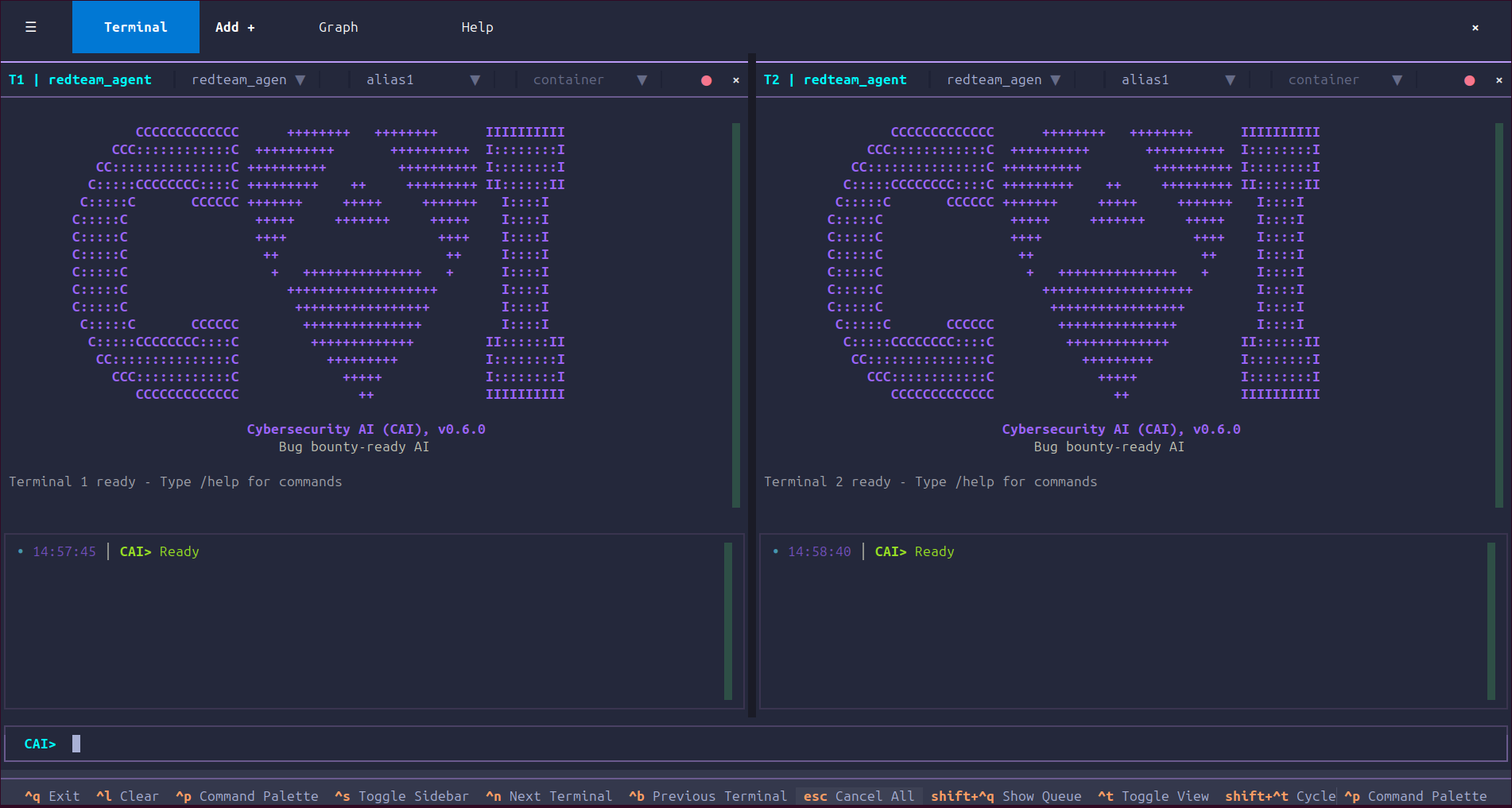
Use Cases:
- Comparing two agent approaches
- Red team vs. Blue team parallel execution
- Different model comparison
Activation: Triggered when using 2 terminals or Team 3/4
Triple Terminal Layout
Three terminals with one full-width top terminal:
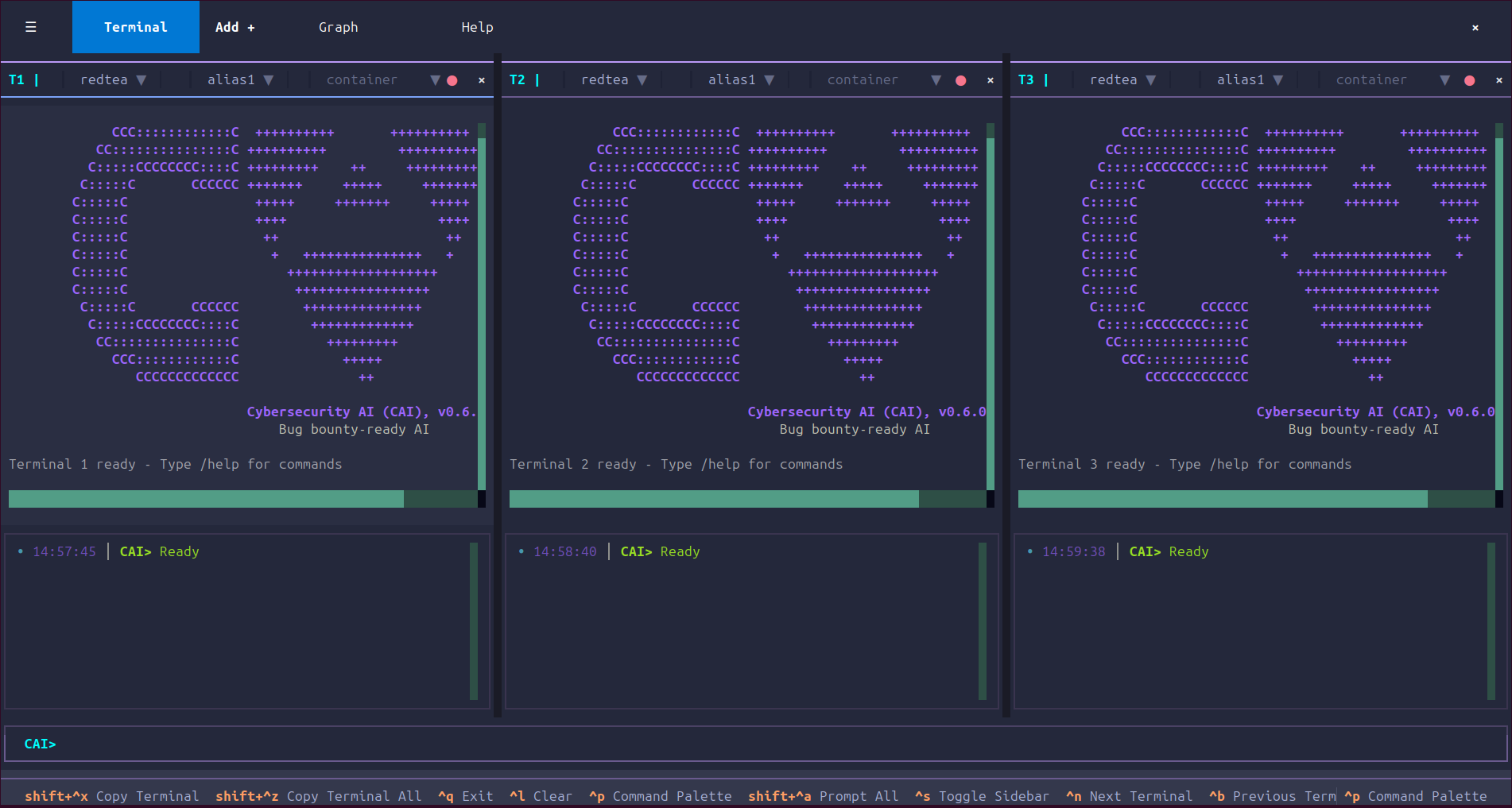
Use Cases:
- Full team operations (Teams 1-4)
- Maximum parallel execution
- Comprehensive testing scenarios
- Multi-perspective analysis
Activation: Default for preconfigured teams (Team 1, 2, 3, 4)
Scrollable Layout
For more than 4 terminals (experimental):
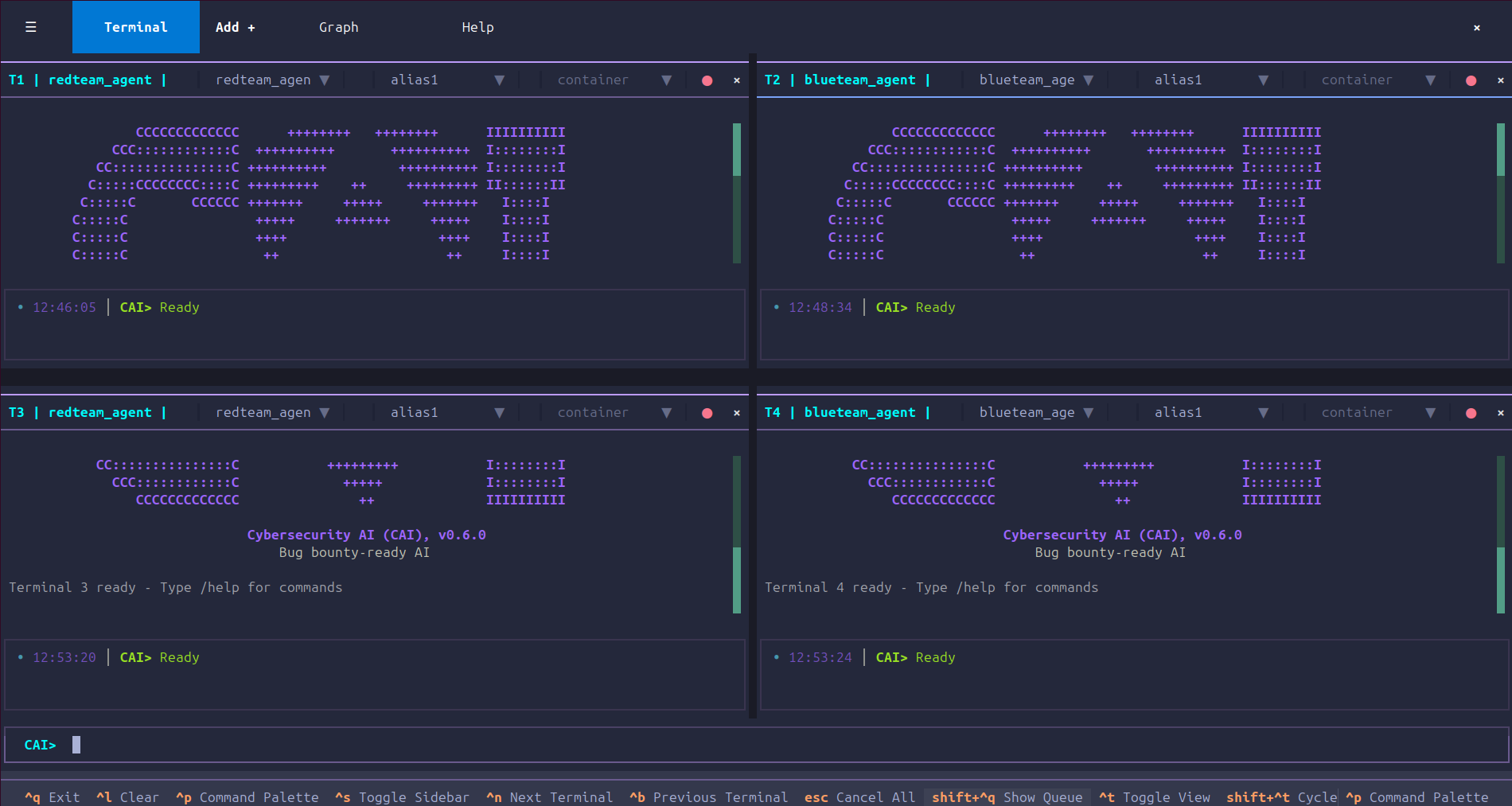
Use Cases:
- Large-scale testing
- Custom configurations
- Advanced workflows
Status Bar
The bottom status bar displays global information:
Left Section:
- Agent: Currently active agent name
- Model: Currently active model
- Cost: Session total cost
Center Section:
- Tokens: Total tokens used (input/output)
- Time: Session duration
- Interactions: Number of completed turns
Right Section:
- Status: Connection status, errors, warnings
- Mode: Current mode (broadcast, queue, normal)
- Shortcuts: Context-sensitive keyboard hints
Input Area
The input area at the bottom provides prompt entry and management:
Prompt Input
Features:
- Multi-line input support (grows with content)
- Syntax highlighting for code snippets
- Placeholder text with hints
- Character counter for long prompts
- Auto-scrolling for long text
Keyboard Shortcuts:
Enter: Submit promptShift+Enter: New line (terminals with extended keyboard protocols)Alt+Enter: New line (universal fallback)Ctrl+U: Clear inputUp/Down: Navigate command history
Autocompletion
The TUI provides intelligent autocompletion for:
Commands:
/clear- Clear terminal/save- Save as.jsonl(for/load) or.md(readable report)/load- Load conversation JSONL (not Markdown exports)/help- Show help/agent- Switch agent/model- Switch model
Responsive Design
The TUI adapts to different terminal sizes:
Minimum Requirements
- Width: 80 columns minimum (120+ recommended)
- Height: 24 rows minimum (40+ recommended)
Adaptive Behaviors
Small Terminals (80×24):
- Sidebar collapses to icons only
- Single terminal view prioritized
- Compact status bar
- Abbreviated labels
Medium Terminals (120×40):
- Full sidebar visible
- Split/Triple layouts available
- Standard spacing
- Full labels
Large Terminals (160×50+):
- Quad layout comfortable
- Additional information displayed
- More breathing room
- Enhanced tooltips
Dynamic Adjustments
The TUI automatically:
- Wraps long lines in terminal output
- Truncates button labels to fit width
- Adjusts table column widths
- Scales terminal grid based on available space
- Hides non-essential UI elements when space is limited
Command Palette
Press Ctrl+P or click the menu button to open the command palette, which provides:
- Quick command search and execution
- Fuzzy matching for command names
- Keyboard navigation (arrow keys, Enter)
- Recent commands history
- Command descriptions and shortcuts
Available commands include:
clear- Clear terminal outputsave- Save as JSONL or Markdown (/save file.jsonlor/save report.md)load- Load JSONL conversation (/load; use.jsonlfrom/save)reset- Reset agent contexthelp- Show help information
Last updated: October 2025 | CAI TUI v0.6+